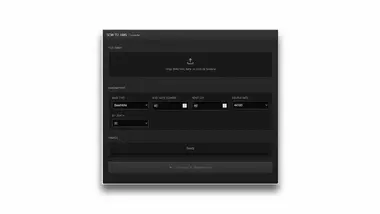
01 // Input Queue
* Drag & drop to add multiple
Initialize Disk
Drop Folders or Click
02 // Target
03 // Precision
Wavetable Resynthesizer: A simple utility for matching specifications.
For when wavetable compatibility is on your mind.
This app is a straightforward utility that allows you to batch-resize frame sizes and adjust the number of frames across multiple wavetable files at once.
Standardize your library to meet the specific requirements of devices like Surge, Ableton Wavetable, or various hardware synths. No installation is required. Simply drop your files into the browser to prepare your library smoothly.
Changelog:
[04.18.2026] Minor Update: Added the ability to import multiple folders via drag-and-drop
[02.28.2026] Minor Update: Standardized Naming Convention
[02.16.2026] Added Sampler Mode for Elektron Samplers and Granular Sampler.
1. Load Wavetables(Wav files)
First, load the WAV file you want to process.
- Drag & Drop: Drop the file directly into the large Input Wavetable area
- Click to Select: You can also click the area to select a file from the file browser.
- Batch Processing: Load multiple files at once to apply conversion settings in bulk.
- Clear: Press the trash can icon to reset.
2. Waveform Monitoring (Monitor)
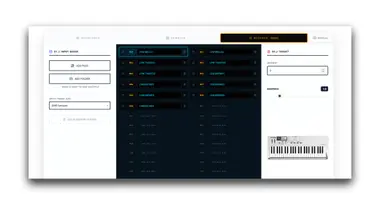
When a file is loaded, the waveform appears in the central 3D oscilloscope.
- Zoom Operation: Use the mouse wheel (or trackpad scroll) to zoom in or out on the waveform.
- File Switching: If multiple files are loaded, use the “◀” and “▶” buttons below the monitor to switch between displayed files.
3. Optimizing Input Settings
In the left Source panel, correctly specify the structure of the original file.
- Input Frame Size: Specifies “how many samples constitute one cycle” of the loaded file.
- If the waveform appears overlapped or truncated on the monitor, adjust this value.
- Most modern synths (Serum/Vital, etc.) use 2048 sample. Older synths or specific waveform libraries may use 128 or 256.
4. Determining Output Specifications (Target Panel)
In the Right Target panel, set the specifications for the exported file.
- Output Frame Size: Select the resolution for one cycle after conversion.
- 1024 samples: Ableton Wavetable
- 2048 samples: Serum, Vital, Polyend Tracker
- Frame Count: Select the number of frames according to your synthesizer’s requirements.
- Original: Retains the same number of frames as the original file (ideal when you don’t want to change the frame count).
- Sampling Rate / Bit Depth: Select according to your target environment (e.g., 44.1kHz / 32-bit).
5. Sound Character Adjustment (Sharpness Factor)
Fine-tune the sharpness of the sound using the Lanczos Sharpness slider.
- 1.0 (NOMINAL): The mathematical baseline. Produces the most faithful and clean output.
- 0.5–0.9: Suppresses high frequencies, creating a smooth, warm texture reminiscent of analog synths.
- 2.0–3.0: Emphasizes high frequencies for a modern, edgy, and glittering texture.
Note: This setting is applied during the final export.
5. Export Wavetables
- Click the EXECUTE button.
- Click DOWNLOAD.ZIP button.
Supported Formats and Devices
- Ableton Wavetable: 1024 samples/frame, 2 ~ 256 frames, 44.1kHz, 32-bit
- Elektron Toneverk: 2048 samples/frame, 64 frames, 48kHz, 32-bit
- Elektron Digitakt2: NoteC/frame, 64 frames, 48kHz, 16-bit[Sampler Mode]
![Additive Wavetable Generator [Web Edition]](/_astro/AWG-app-card.CwGmd-8R_Q8fKM.webp)